How to Turn Off Teaching Tips in Business Central (Stop Pop-Ups)
Teaching Tips in Business Central are built-in guidance pop-ups that help users understand features, fields, and processes. They’re useful for new users but can become repetitive and disruptive for experienced users. Many companies build their own standard operating procedures which render these mini tips and tutorials useless.
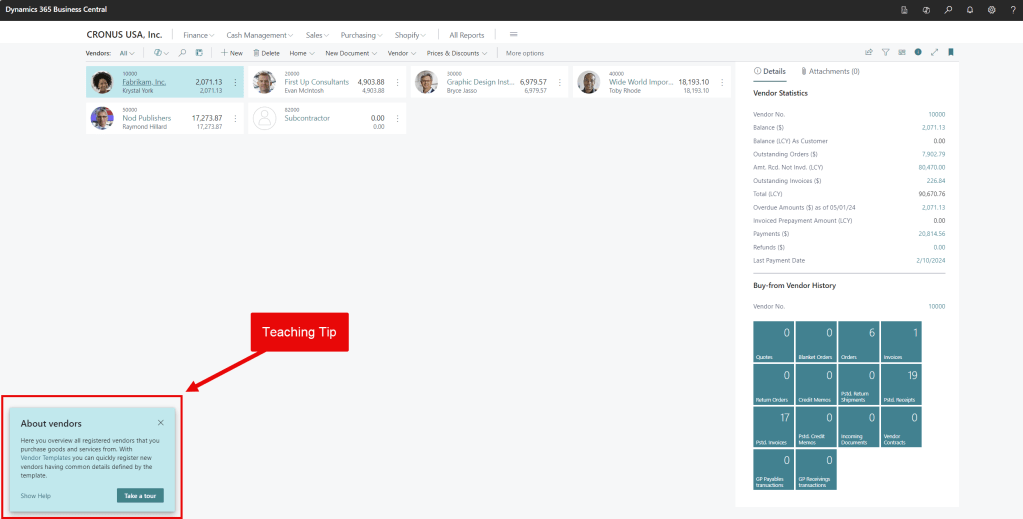
Why Turn Off Teaching Tips?
In high-volume environments like accounting or order processing, even small interruptions can impact productivity. For a smooth user experience, less is always more, and to be honest, it can just be straight up annoying!! 😂
- Slows down experienced users
- Interrupts data entry workflows
- Creates unnecessary clicks
- Not needed in trained teams
How to Disable Teaching Tips from Users Settings
To remove the teaching tip pop-ups, follow these steps; this will only affect your user account and not others in your organization.
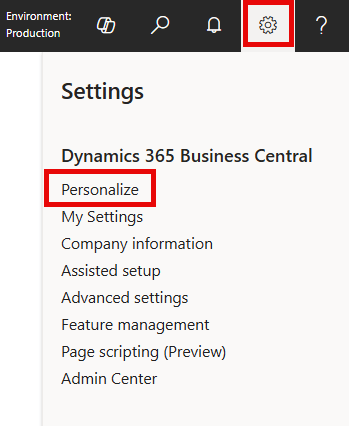
- Click the Gear Icon (Cog) ⚙️in the top right of Business Central
- Select My Settings
- Uncheck the field Teaching Tips
- Done, simple as that! Did you think it would be hard?!? 😊
Can Teaching Tips Be Turned Off for All Users?
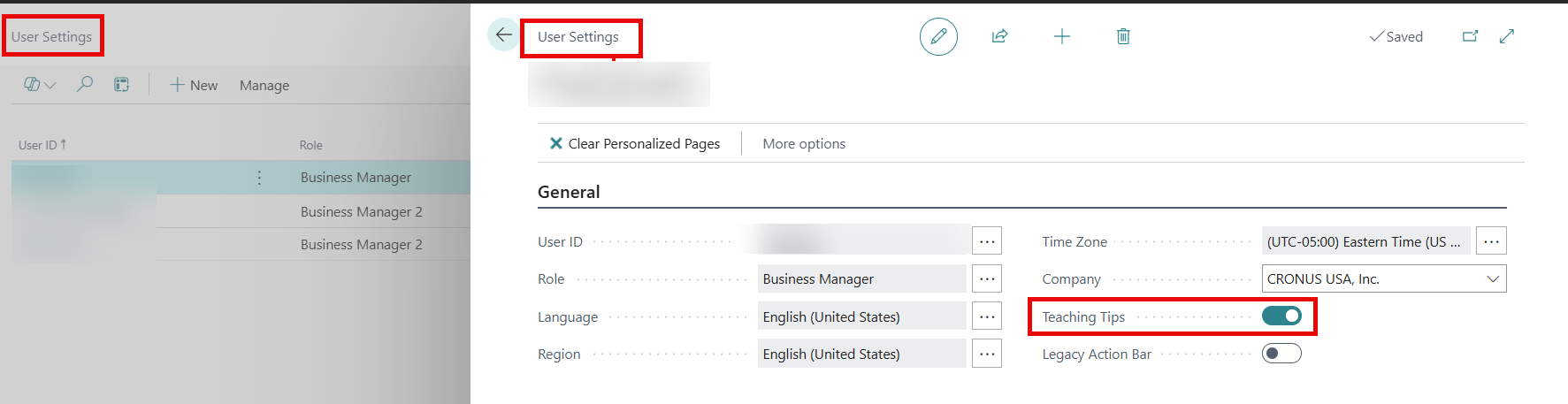
Yes, it can be done. An administrator or someone with permissions to the User Settings page in Business Central can change this for all users. This requires opening each user’s card individually to turn it off in Business Central. Alternatively, you can use Edit-in-Excel to quickly update it for all users at once.
As a best practice when you add new users you should always set their User Settings before they first sign in. Besides turning off teaching tips, you can also assign their default Role (also known as Profile), which provides specific layouts and screens for their job.
Related Posts
- How to Remove the “Get Started” Banner in Business Central: This is a splash page on the role center that users often want to remove. The article explains how to do it.
- Business Central User Profiles (Roles) and Field Level Security: Discover how to simplify the screen and button layout for user groups in your organization, ensuring a consistent and tidy system.
- Fix: “The document has been saved but is not yet posted.” Warning in Business Central: Users can adjust this setting like can for removing teaching tips.
- How to Use “Edit in Excel” in Business Central (Step-by-Step Guide): Learn how to use Excel to load documents and journals for easier processing. One of the best features Business Central has to offer.
Thank you for reading, I hope you learned something new.
As always, stay SAASY my friend.
-Dino

 Business Central Made Easy
Leave a comment