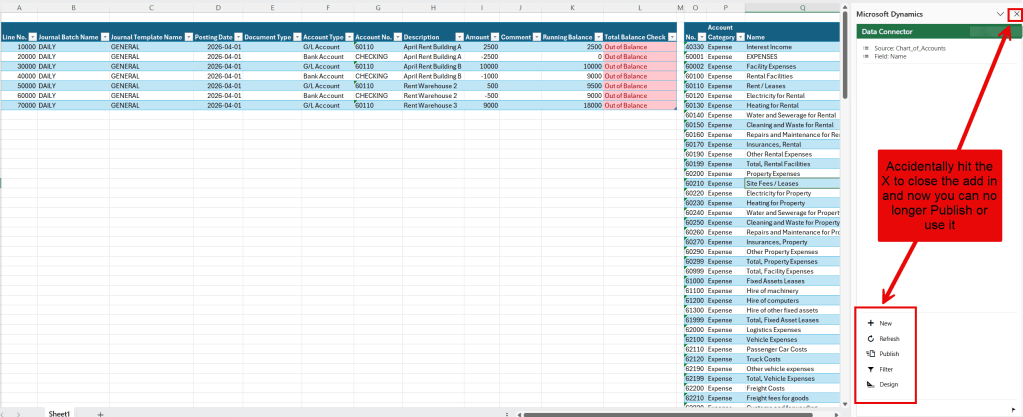
Did you spend a bunch of time configuring an Edit in Excel template just the way you wanted but accidentally closed the add-in? The thought of redoing all that work is frustrating, right? Don’t worry; it’s quick and easy to reopen the add-in. Some people struggle to find it and end up going back to Business Central to start over, but you don’t have to be one of them.
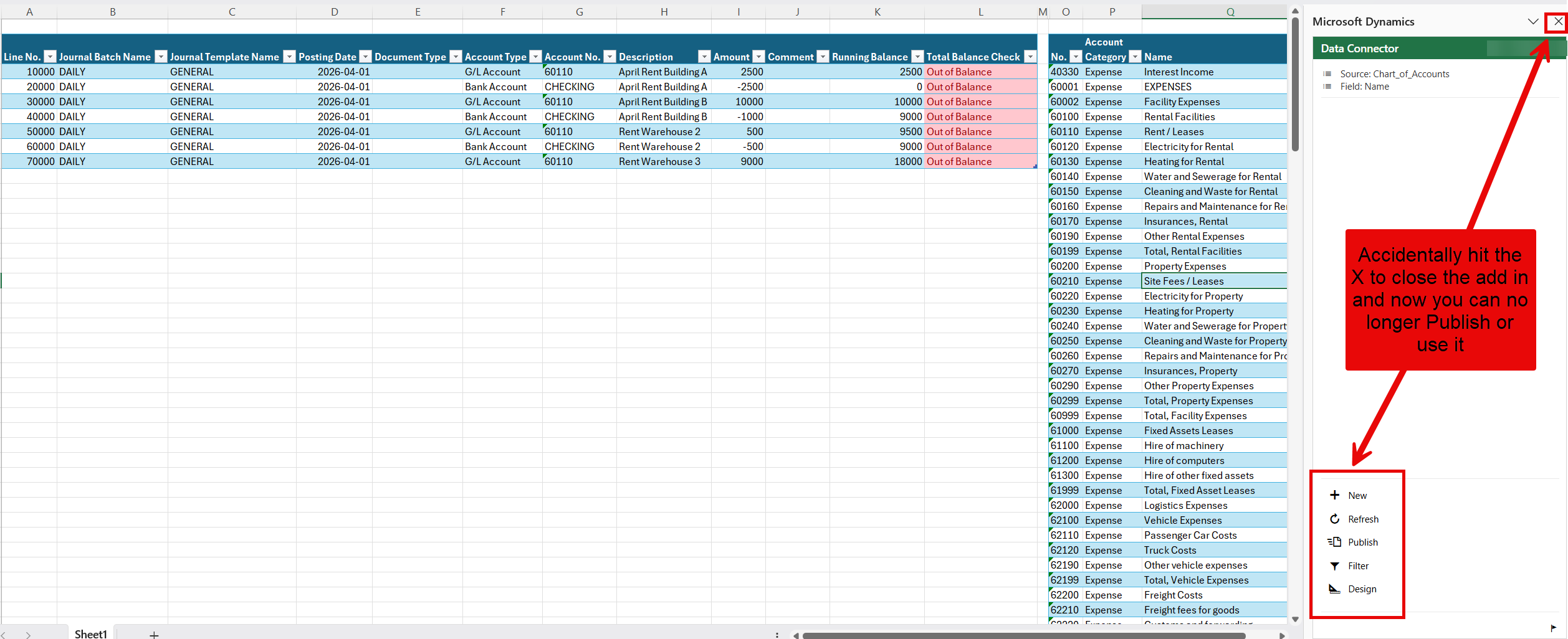
Edit in Excel Basic Overview
Edit in Excel is available on most pages of Business Central, and it is a valuable tool that allows you to pull records into Excel for editing, which you can then publish back to Business Central. This time-saving feature is particularly useful for bulk edits, fixes, journal entries, and much more, making it a favorite among users.
A key benefit of the add-in is that you can customize the template to fit your needs by adding, removing, or rearranging columns, using custom formulas, and adding extra tables. Creating a custom template can take time, so it’s important to have the add-in reinstalled. Without it, you won’t be able to publish anything back to Business Central.
Related Post: If you’re new to this feature or want a complete walkthrough, check out my full guide: How to Use “Edit in Excel” in Business Central (Step-by-Step Guide)
How to Readd the Edit in Excel Add In
When Edit in Excel is missing you just need follow these simple steps to get it back and continue where you left off.
- In the Home tab of your Excel Ribbon, there’s a button for Add-ins.
- Select Add-ins and then choose the Microsoft Dynamics Office Add In
- You may need to sign in again after adding it back. It should refresh when you sign in, but if it doesn’t, make sure to do so before editing.
- Voila, the Add-in is back! You’re all set! 😊
I hope this post solved the mystery of the disappearing Edit in Excel add-in for you and that you saved time by not needing to create a new template.
Thank you for reading, I hope you learned something new.
As always, stay SAASY my friend.
-Dino


Leave a Reply