Introduction to ISVs (Extensions)
Microsoft Dynamics 365 Business Central lets organizations enhance its basic features with third-party extensions from Independent Software Vendors (ISVs). These extensions help businesses fulfill specific needs, whether industry-related or to address gaps in the base application. While Business Central is already very flexible, these additions make it even more adaptable, allowing for tailored functionality as required. Like the main software, installed extensions are periodically updated by their developers to add new features, improve performance, and fix issues. In this guide, we’ll show how to find installed extensions and update ISV apps in Business Central, including steps for administrators to take before applying updates.
Best Practices and What to Do Before Updating
Is Microsoft finally adding a feature you’ve wanted for years? Are you excited about new functionality that could save you time each week for more important work? While this is exciting, you shouldn’t run the update in Production immediately without careful consideration and testing. Updates often add new features that enhance workflows, but it’s essential to consider them carefully before updating. Follow these steps to follow best practices.
- Know Your Extensions: Many add-ons for Business Central are built into the software, so you might not notice them. While this creates a seamless experience, it’s essential to know which features are part of Business Central and which come from ISVs. You can check installed extensions in two places: 1. In Business Central, go to Installed Extensions where any items with a Publisher different from Microsoft would be an ISV extension. 2. In the Business Central Admin Center, where updates will be managed as described later in this article.
- Custom Non-ISV Extensions: If you have custom development that is not a published app on AppSource, ensure it stays updated with Business Central or ISVs. Your partner or internal development team should manage this.
- Review Release Notes: Many ISVs publish release notes detailing new features and bug fixes in their updates. This helps you understand changes that may affect your processes. Most importantly, it will keep you and your team informed of the latest and greatest features thus enhancing productivity.
- Update Sandboxes First: Always run updates in a sandbox (test) environment first to ensure everything works as expected. Sandboxes are separate from Production, so your changes won’t affect your live company. Conduct Critical Path Testing by validating important workflows. If a task is essential for operating your business, it should be tested. For instance, if you pay Vendors with Checks, print a test check to confirm the update hasn’t caused any issues. Trust me, it’s a lot better to find these issues in test than Production…
- Updating Production: Once checks are complete, you can update Production. Do this after hours to avoid locking issues and errors for users. If you need to run during work hours you should inform users of this and plan a blackout period where everyone will be logged out.
Steps to Update an Installed Extension in Business Central
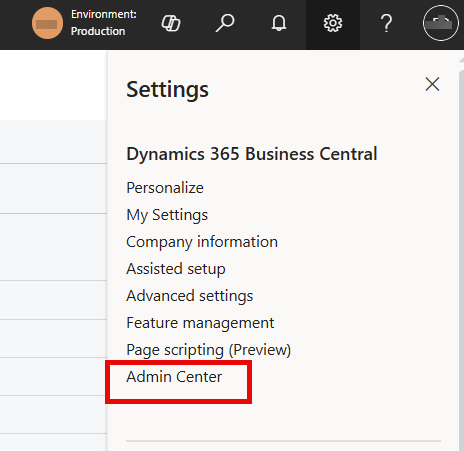
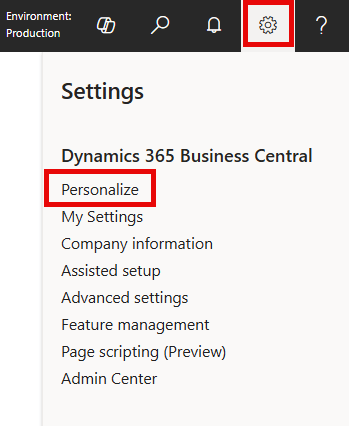
- Login to Admin Center: Manage updates in the Dynamics 365 Business Central Admin Center. Access it through the settings in Business Central as shown in the picture below. If you don’t see the Admin Center button, then you don’t have sufficient permissions and will need to contact your admin or partner.
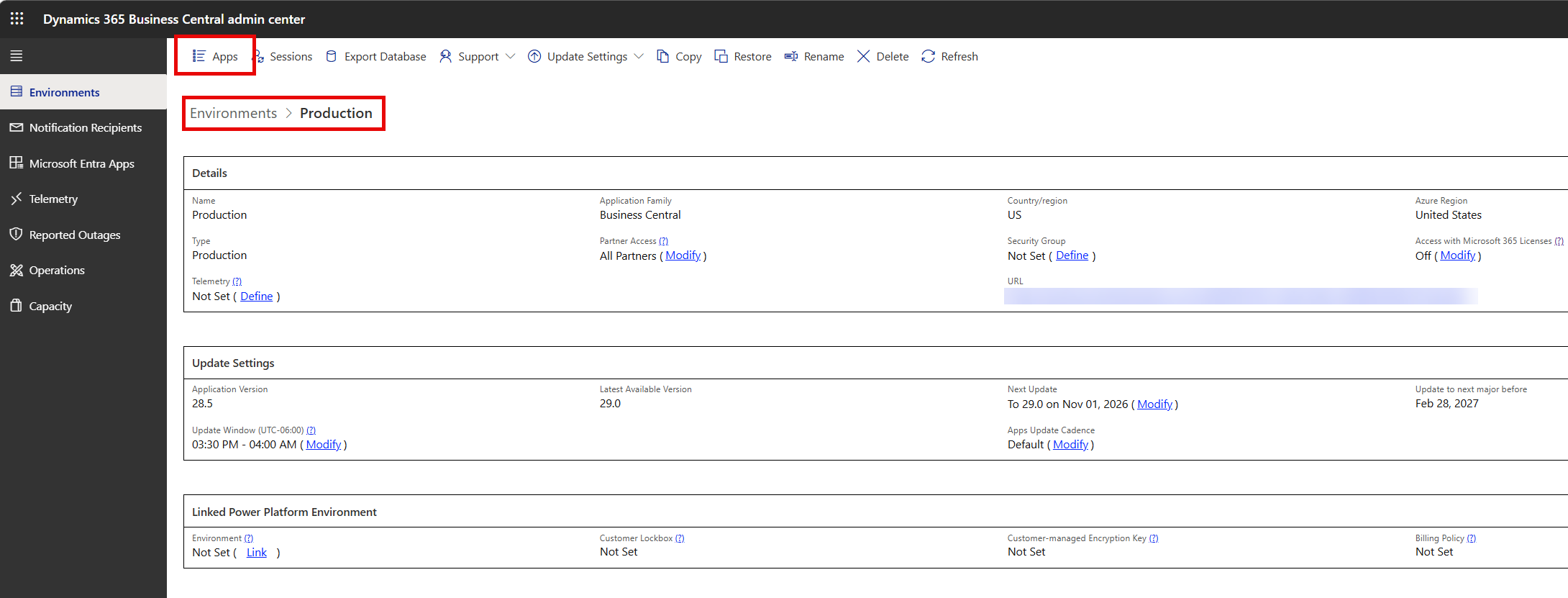
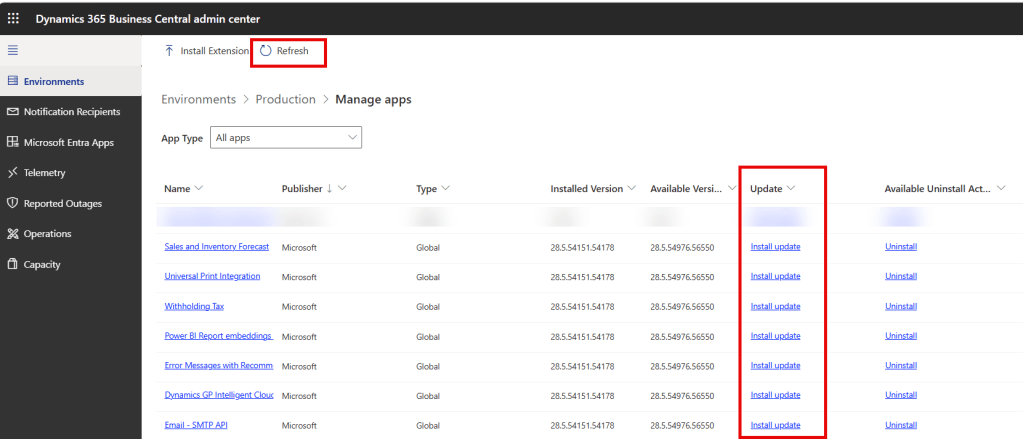
2. Navigate to Apps: Under the Environments tab select the environment you want to update. Click the Apps button in the top left to open the list of Extensions.
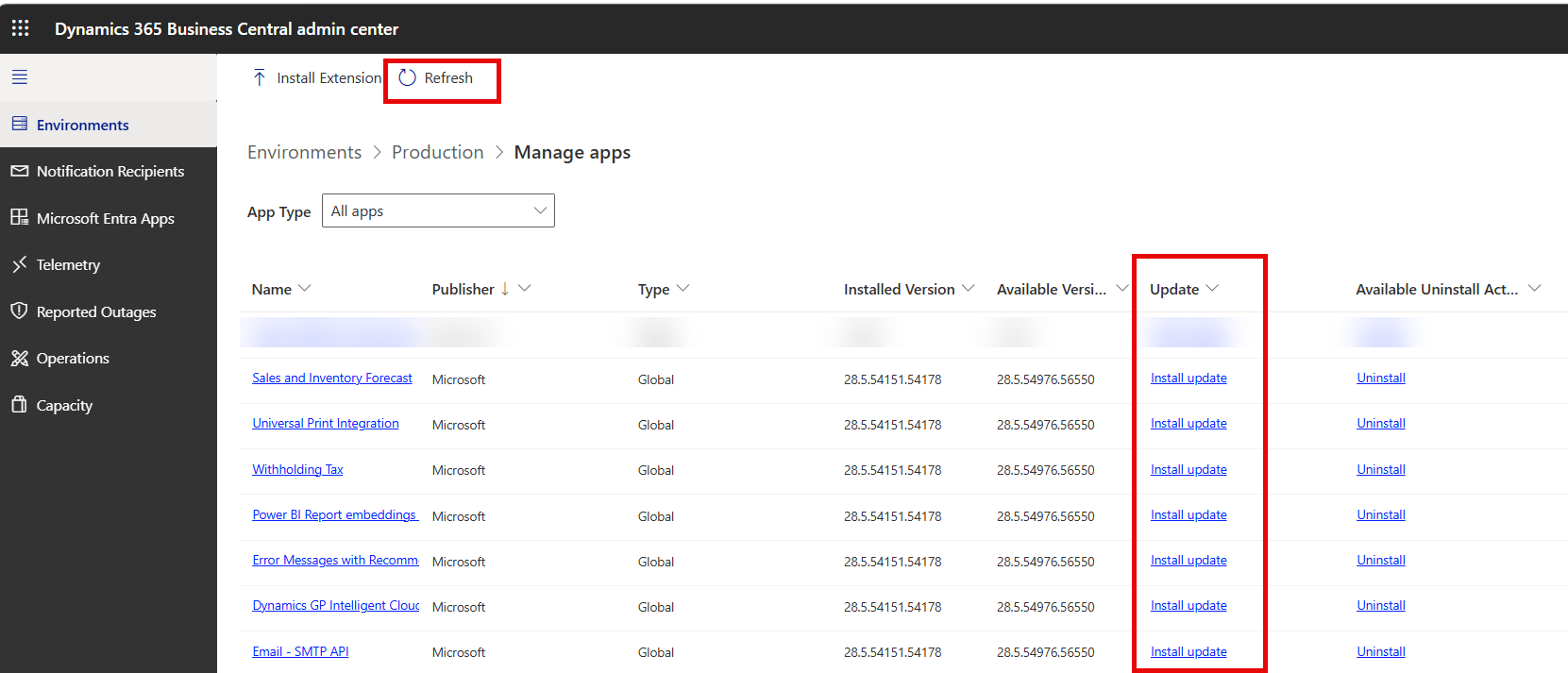
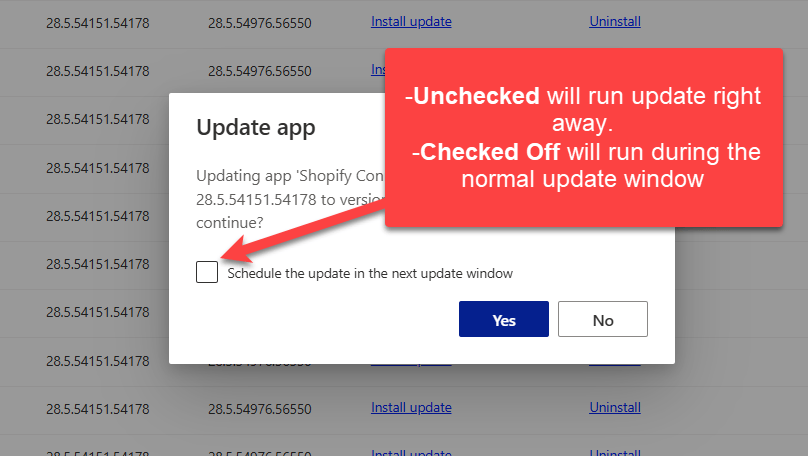
3. Manage Apps List: This shows all extensions from both ISVs and Microsoft. You can see the installed version and the available version for update. In the Update column, click Install Update, which will confirm if you want to proceed. You can choose to run the update during your company’s normal update window, or it will run immediately. The status will change to Update is Scheduled, and you can use the Refresh button to check the status. Each time you return to the apps page, it will refresh to show the most current status. Some extensions may have dependencies and require other extensions to be updated first, and you will receive a prompt if that happens. If needed, you can also uninstall an extension from this page.
Common Issues with Updates
- Incompatible Code: This can happen in two scenarios:
- ISV Extensions: ISVs are responsible for keeping their code current with Microsoft’s updates so this shouldn’t be an issue but sometimes it happens. If the update doesn’t go through or there’s issues you should reach out to the ISV. They will apply a fix and when ready you install the update as explained before.
- Custom Development: Any custom code will need to be fixed by your partner or the developer who did it. There won’t be any Install Updates for these because they are custom to your company.
- ISV and ISV Issue: If you have multiple ISVs sometimes and issue can happen between them. In this case you need to contact both and one will need to fix it.
- Errors: Updates may succeed, but bugs can occur which is why you should also test in a sandbox first.
- Integrations: An update can expose compatibility issues so it’s best to test all integrations.
- Update Not Available: Sometimes the release dates of updates get pushed back so you just need to check the release notes or contact the publisher.
Thank you for reading, I hope you learned something new.
As always, stay SAASY my friend.
-Dino


Leave a Reply