Setting Up User Email View Policies in Business Central
A common question in Microsoft Dynamics 365 Business Central is, “Why can’t this user see an email?” This can be frustrating for users who are trying to find important communications. The reason often lies in the User Email View Policy assigned to that user. These policies determine which emails a user can view on the Sent Emails and Email Outbox pages, affecting their access to essential information. As a result, one user may see certain emails while another does not. Understanding these policies is important for keeping everyone informed. In this guide, I’ll explain how User Email View Policies work, how to configure them for your organization, and how to troubleshoot cases where a user cannot find the email they need, promoting effective communication and workflow within your team.
Important Note: This article assumes you’ve already setup email accounts and scenarios in Business Central. If you haven’t, checkout this guide that walks through those setups. Setup Email and Email Scenarios in Business Central
Email View Policy Options
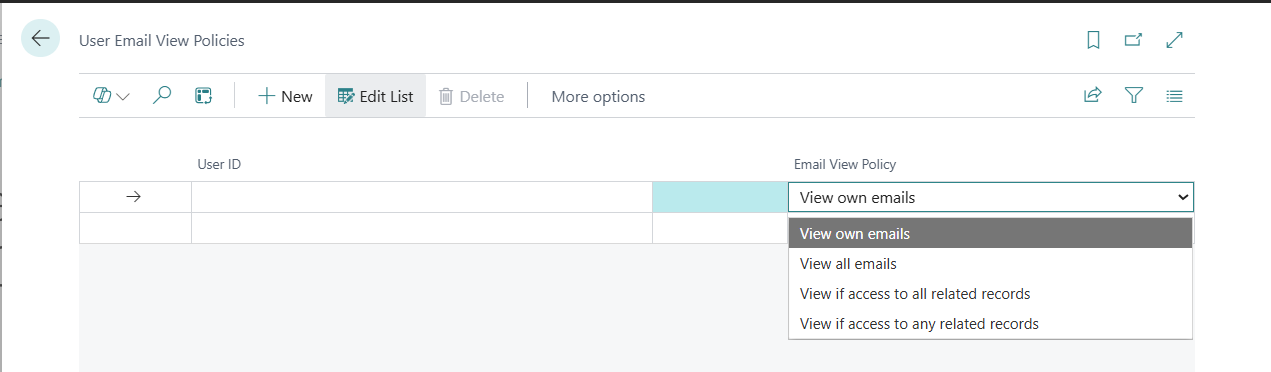
In the global search lookup User Email View Policies and you’ll see the page come up if you have permissions. Below are the options you can select which will apply to both sent emails and any emails sitting in the outbox.
- View own emails: Pretty obvious… But for the ones who aren’t sure… this will show users only emails they’ve sent from Business Central.
- View all emails: Users can see all their own and others’ email messages.
- View if access to all related records: This is the default policy applied when no other policy is specified for a user. It allows users to access emails sent from other users if they have permission for the sent record and related records. For example, if user Dax sends a Posted Sales Invoice to a customer, user Dino can view it if he has permission to see both the customer and the sales invoice.
- View if access to any related records: A user can view emails sent from other users if they have access to at least one related record. For example, if Dax sends a Posted Sales Invoice to a customer, Dino can access the email if he has permissions for either the invoice or the customer, but both are not required.
Do you have to setup a default policy for every single user?
Short answer is no, but you have options. You can give users a specific policy, set a default for everyone, or use a combination of both. Email policies can be tailored to fit your business. There’s no one-size-fits-all solution as it depends on your needs and security requirements. Keep in mind only users with appropriate permissions can make these changes. Here are some options that you have:
- Entering a User ID along with an Email View Policy will apply the policy to that specific user.
- Leaving User ID blank with an Email View Policy applies it to all users without a defined policy. If a user has a specific policy, that will take priority.
- If there are no blank User ID lines and a user isn’t listed, they will get the default option of View if access to all related records.
Common Reasons a User Can’t View Emails
- User is set to View own emails and the email was sent from a different user.
- User is set to View if access to all related records but lacks access to a specific record. For example, user Dino can view Vendors but not Purchase Orders. If user Dax emails a Purchase Order to the Vendor from Business Central, Dino won’t see the email because he cannot access Purchase Orders.
- User is set to View if access to any related records but they simply don’t have permission to any of the records involved.
Thank you for reading, I hope you learned something new.
As always, stay SAASY my friend.
-Dino


Leave a comment