In Microsoft Business Central, the Service Charge Account field in the Customer and Vendor Posting Groups can be confusing at first. This field controls where service charge amounts are posted in the general ledger when they are applied to the customer transactions. Let’s take a deep dive into how it works and what types of transactions will invoke the user of the account.
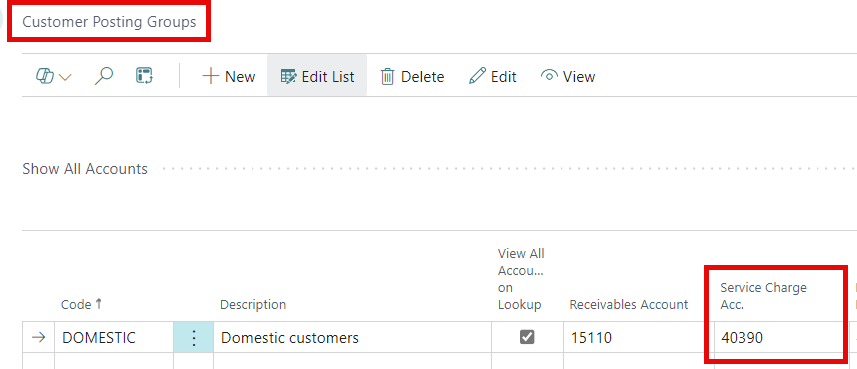
What the Service Charge Account is Used For
The Service Charge Account determines the G/L Account for service charges applied to customers or vendors. A service charge can be added to an invoice if a different currency is used or a minimum amount isn’t met. This charge helps cover operational costs or can discourage certain customer ordering behavior. Here are some reasons why a business might use this.
Currency Related Service Charges
- Bank Fees/ FX Conversion Costs: Many banks will charge fees when you deposit foreign currency and the cost can add up if you’re doing this often. A service charge could help to offset this fee.
- Exchange Rate Risk: Rates can change a lot between invoicing and payment, so a service charge adds a buffer to reduce risk. This is especially useful for currencies that are more volatile.
- Operational Overhead: Managing foreign payments, rounding differences, and multi-currency transactions can be complicated. This may create significant overhead for smaller finance teams. An additional charge can help offset these overhead costs.
Minimum Amount Service Charges
This is about discouraging low-value transactions that aren’t profitable to protect the business from losing money.
- Processing Costs Don’t Scale Down: For some companies, processing a $20 order can be almost as costly as processing a $2,000 order due to labor, invoicing, shipping, and handling.
- Margin Protection: Small orders often get eaten up by fixed costs. A service charge can close that gap.
- Encouraging Larger Orders: Customers are encouraged to combine purchases for a larger total, turning an extra charge into an incentive.
How to setup and Process Service Charges
While this can setup for both Customers and Vendors, I’ll use a customer in my example. First, set up the ‘Service Charge’ amount on the ‘Cust. Invoice Discounts’ page from the Customer card.

For the School of Fine Art, I will add a $2.00 fee for invoices under $10.00. Depending on your choice for ‘Calc. Inv. Discount’ in the ‘Sales & Receivables Setup’ page, the service charge will be calculated differently. If ‘Calc. Inv. Discount’ is on, the charge will be added when posting, if applicable.
If ‘Calc. Inv. Discount’ is off, the posting routine won’t add the charge automatically, so you will need to calculate it manually.
Related Post: For more information about the other accounts in the Customer Posting Group, please Click Here.
Thank you for reading, I hope you learned something new.
As always, stay SAASY my friend.
-Dino


Leave a Reply