When you log in to Microsoft Business Central, the first page is the Role Center, showing bookmarks, menus, reports, and more tailored to your profile. These can be customized for all users or individually. For more details on profiles, check this link: Business Central User Profiles (Roles) and Field Security. Most profiles have a “Get Started” banner at the top with links to tutorials, help videos, and configuration areas. Before getting into how to remove it, lets first talk about why it’s there.
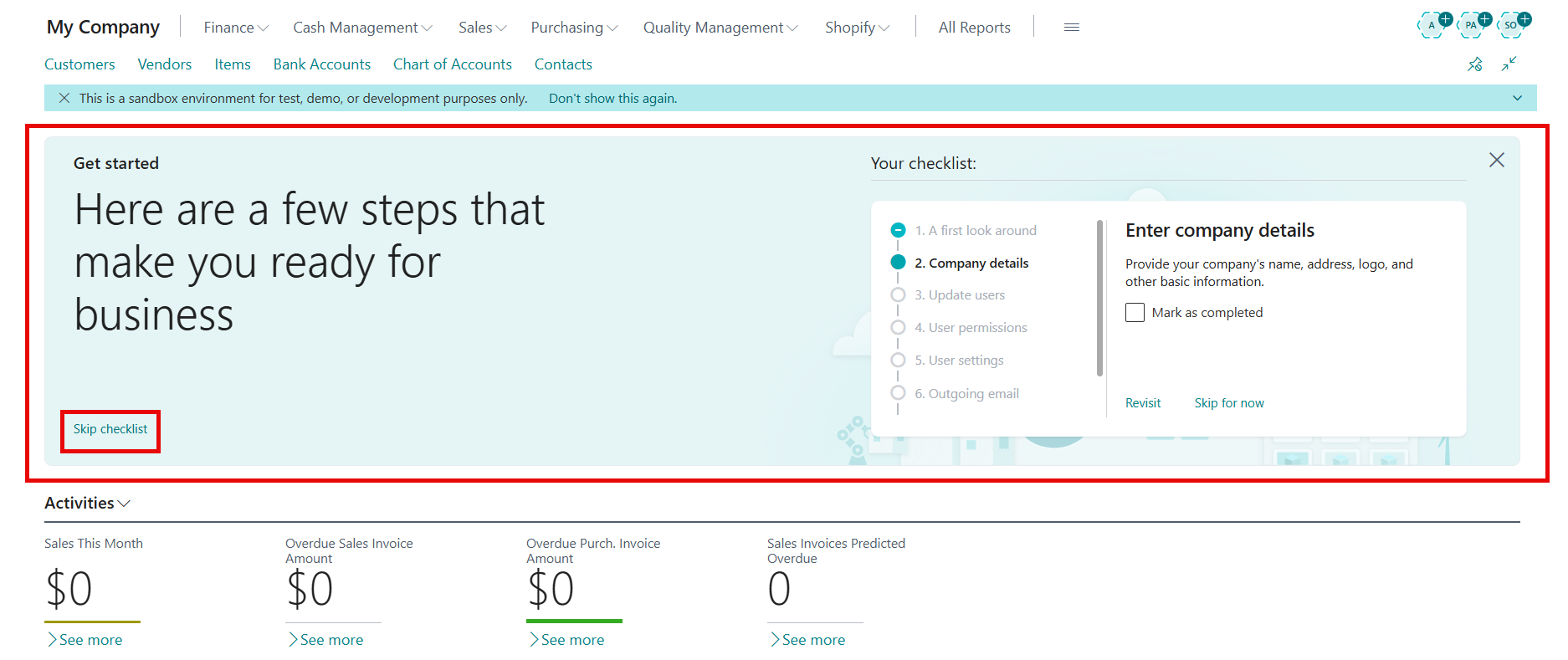
What’s the Get Started Banner used for?
- New Company Setup: Guides users through wizards to set up a new company in Business Central, from entering company information to managing user permissions. Commonly used by profiles like Business Manager.
- New User Guide: Offers quick tutorials on navigation and creating records tailored to the user’s profile. For example, a Sales Order Processor’s guide includes steps for creating Sales Quotes, Processing Orders and checking sales invoice history.
While it’s meant to serve as a checklist for newcomers, in practice, implementing partners typically manage setups using their more detailed project plans. Additionally, the tutorials are generic and not tailored to how each business uses the software. Companies often have their own standard operating procedures for new hires. This leads to the question, “How do we remove this?” since it takes up valuable space on the role center. Let’s look at how to eliminate it.
How Do We Hide the Get Started Banner?
To hide the banner, three approaches can be used, as detailed below.
- Users can complete the checklist to assist with the basics of Business Central. Each company should decide if this approach suits them.
- In the bottom left of the banner, there’s a button called Skip checklist. Click it to remove the banner from your home screen, but this applies only to your account. Each user must click this to remove it.
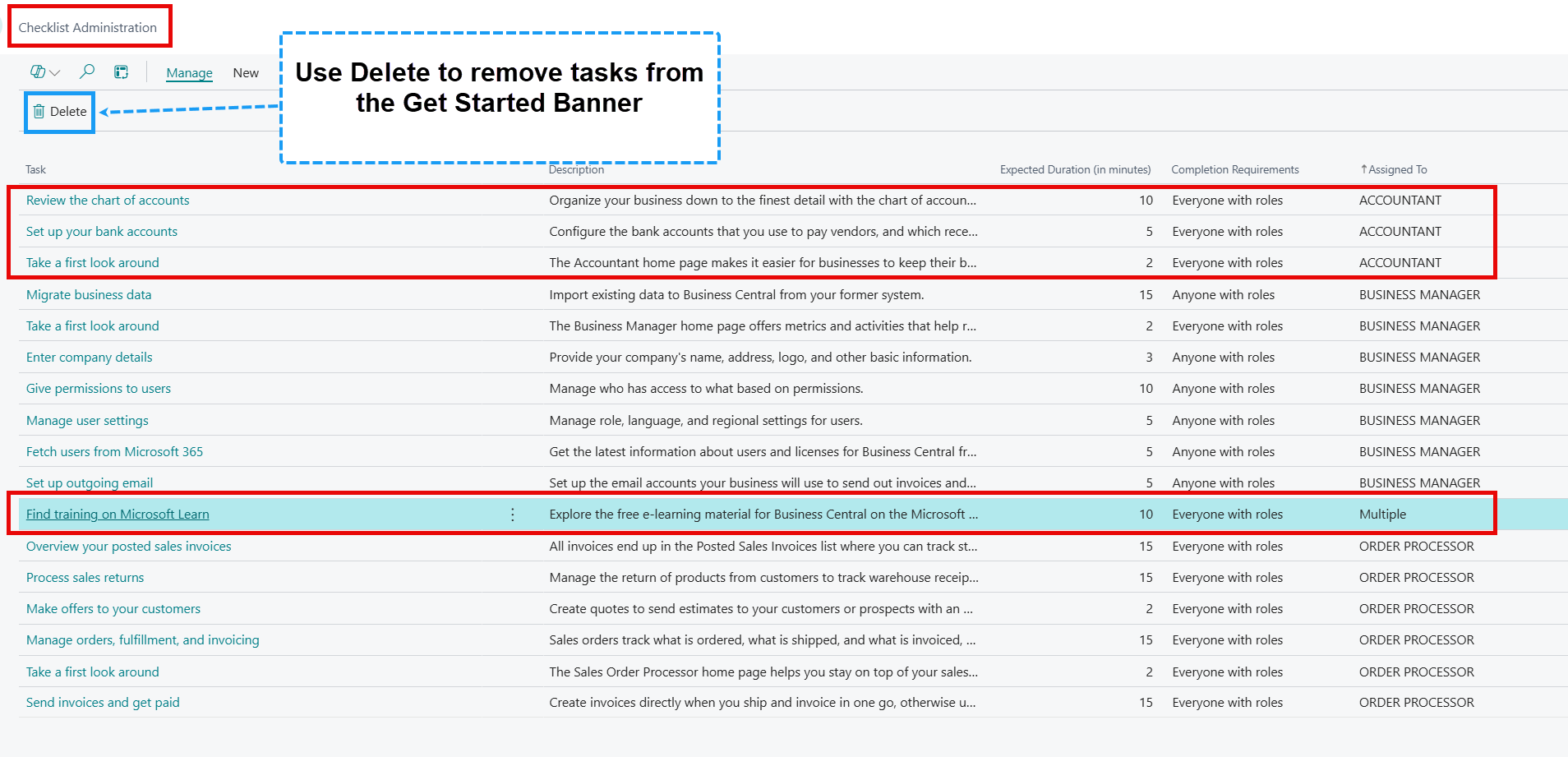
- An admin can delete setups on the Checklist Administration page. Some tasks are assigned to specific profiles, including the top three for the ACCOUNTANT profile. The “Find Training on Microsoft Learn” task is set to Multiple and assigned to ACCOUNTANT, BUSINESS MANAGER, and ORDER PROCESSOR profiles. If at least one checklist item exists for a profile, the Get Started banner appears. Deleting tasks removes them for all related profile users. New users won’t see the checklist.
- This list comes from base Business Central but can be customized and may vary in your environment.
Thank you for reading, I hope you learned something new.
As always, stay SAASY my friend.
-Dino
 Business Central Made Easy
Leave a comment