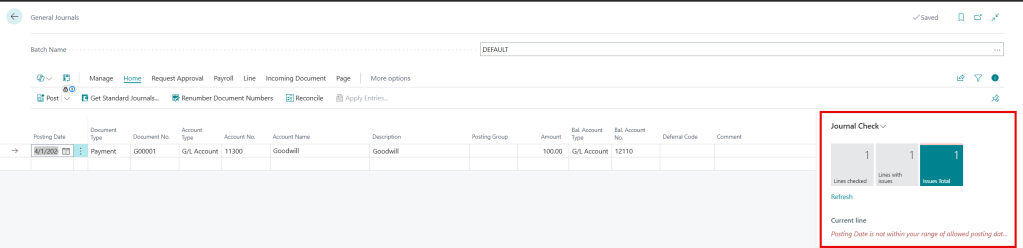
In Microsoft Business Central, this error message occurs due to incorrect data in the journal setups and is easy to fix. The error shown in the picture below relates to a missing G/L Account, but it can also happen with other data types like Customer, Vendor, Bank Account, Fixed Asset, IC Partner, Employee, and Allocation Account. Essentially, if it can be used as a Balancing Account, this error may occur.
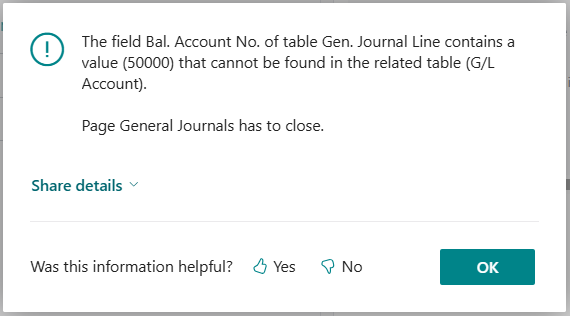
Why is the error thrown?
In the system, you can assign a default balancing account for each journal batch and template. This error occurs when you try to open a journal batch with a default balancing account linked to a record that has been deleted. When a record, like a G/L Account, is removed, it’s not automatically cleared from the journal setups, leading to the error. Some common reasons why this happens:
- Newly Created Company: When setting up a new company, you can choose “Setup Data Only,” which provides a basic chart of accounts, journal batches, and other setups. It’s common to begin with this type of company and replace the entire chart of accounts later. Be careful when deleting a G/L Account, as it might be linked to a journal in Business Central. If you intend to delete accounts then first check the journal templates and batches.
- Unaware of Setups: Records may be deleted when no longer needed, but it’s often unclear which journal batches or templates they belong to. Also, not all users make journal entries, so they may be unaware of this.
Steps to Resolve the Error
There’s two situations for this error message: one is when the journal fails to open, and the other is when it does. Below are the fixes for both.
- Journal Will Open: In this case you simply need to delete the default balancing account.
- Journal Won’t Open: Missing G/L Accounts are an example of when this happens. To fix this, temporarily create the missing record, open the journal batch, and remove the record from the balancing account. After clearing the setup, you can delete the newly created record since it’s no longer needed.
IMPORTANT: The steps above will resolve the issue for specific batches, but you also need to check the Journal Templates. This part of Business Central contains default settings for all journal types. When a new batch is created, it uses these defaults, so make sure the missing record isn’t defined there too.
Thank you for reading, I hope you learned something new.
As always, stay SAASY my friend.
-Dino
 Business Central Made Easy
Leave a comment