Business Central doesn’t have a strict closing of periods that prevents posting new entries. Instead, it uses posting date ranges, which can be set for all users, individually, or both. If you try to post with a date outside of this range, an error occurs. This is one of the most common issues, so let’s explore its causes and how to resolve it.
Why is the error thrown?
There are three main reasons I see this occurring for users, as explained below.
- Incorrect Date: Ensure the Posting Date is accurate. Dates can be mistakenly entered with the wrong year or month, especially if imported from Excel or copied from an old document. Validating the date is the first step to resolving any issues.
- Posting Date Range is Wrong: These should be updated regularly by your Business Central admin based on your business needs. Companies often limit the posting range to the current month, which can lead to errors if it’s not updated when the month changes. It’s ideal to have at least two people who can update the ranges in case one is on vacation. If your admins are all unavailable, contact your Partner for assistance.
- Credit Memo: Sometimes credit memos are created for invoices from previously closed periods. Using the original invoice date may be correct, but it’s important to confirm with your accounting team. Many organizations prefer all activity to be posted in the current period and avoid backdating.
Where to Update the Posting Date Ranges
There’s two setup pages in Business Central where you set posting date ranges. Updating these ranges to include your current date will fix the error.
- General Ledger Setup: This is a global setting that applies to all users.
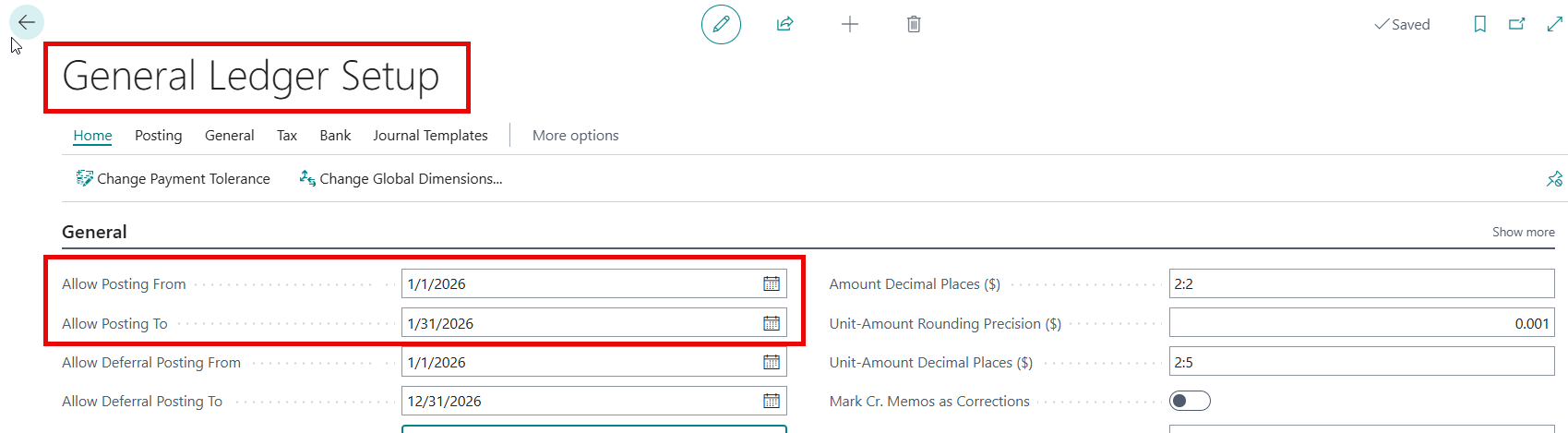
2. User Setup: On this page, you can add user-specific ranges. If a date range is set for a user, it overrides the General Ledger Setup. An example of a user with a different range could be a Controller, who occasionally backdates entries from an audit or month-end.
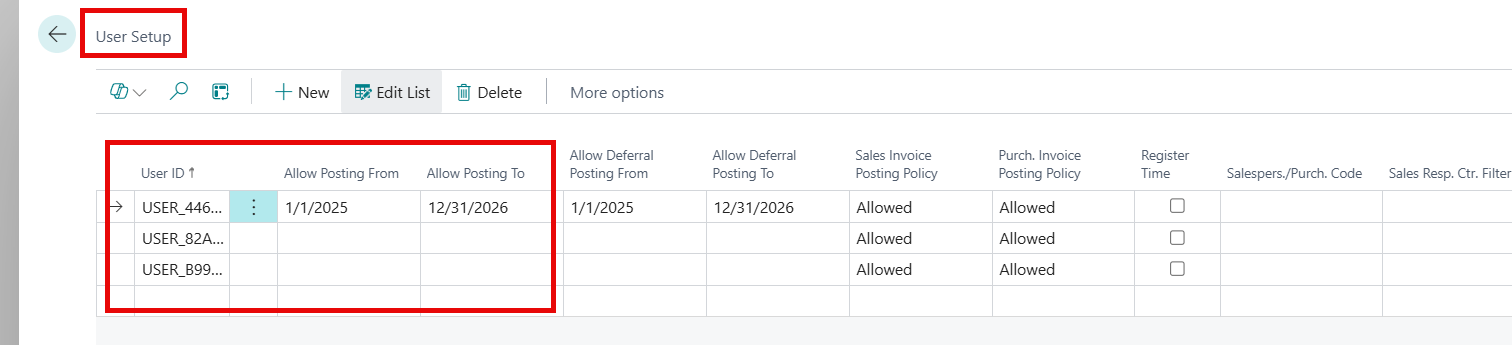
Additional Comments on Posting Date Ranges
- Best Practices: Limit user posting to avoid mistakes and ensure accurate closed periods. Restrict setup page permission to users authorized to update ranges.
- If the From and To dates are empty, all dates in the range are accepted. Which means if the General Ledger Setup and User Setup are both empty, then ALL dates can be used in posting. The General Ledger Setup should usually be filled in, and the User Setup should be entered for special ranges.
- From Date Only: Valid dates must be after this date.
- End Date Only: Valid dates must be before this date.
- There is not currently a way to limit posting ranges by module (AR, AP, Journals, etc.).
Final Tip
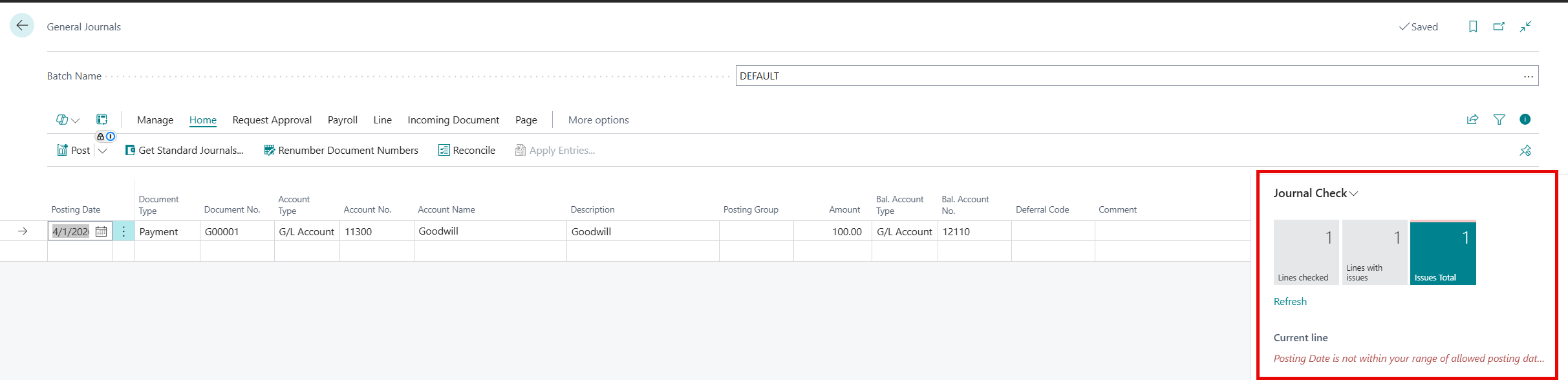
If Enable Data Check is turned on in the General Ledger Setup, this error will appear in the error check factbox, warning you of an issue before posting journals and documents.
Thank you for reading, I hope you learned something new.
As always, stay SAASY my friend.
-Dino
 Business Central Made Easy
Leave a comment