Let’s dive into what Profiles (Roles) are, and how they can be used in Microsoft Business Central. In this article, Profiles and Roles mean the same thing.
What are Profiles (Roles)?
In Microsoft Business Central, Profiles show default pages and fields based on job roles to help users work more efficiently. Predefined Profiles exist for different roles, like Accountant and Sales Manager. The Accountant profile emphasizes financial tasks, while the Sales Manager profile focuses on client interactions. This setup helps users easily adapt to their roles. With over 40 profiles available, try switching a few to see which one fits you best. For those managing multiple roles, the Business Manager Profile is usually the best option.

Profile Fields Explained
- Profile ID, Display Name, & Description: Pretty obvious…
- Source: Indicates if the Profile is Base Application, a custom Extension (Sometimes a Microsoft Extension), or User Created.
- Role Center ID: The Role Center is the initial landing page in Business Central. It shows a list of pages tailored for various roles.
- Enabled: Indicates if the profile can be selected by users. Users with this profile can still sign in even if it’s not enabled.
- Show in Role Explorer: Controls whether the Profile name and features are visible in the Role Explorer. The Profile must be enabled for this to work.
- Default Profile: This will be used if no Profile is assigned to a user.
- Disable Personalization: Prevent users from modifying their layouts, receiving only the predefined settings. Additionally, they cannot bookmark pages, reports, or create saved views on lists.
Profile Ribbon Buttons
- Customize Pages: Opens Business Central in customization mode in a new tab, enabling you to show, hide, add, and move fields. Changes affect all users with that profile, making it a powerful tool for streamlining the software for teams. You can even add fields from the table that are otherwise not available for users doing their own personalization’s.
- Copy Profile: Allows you to copy an existing profile to a new user-created one. This is useful for situations when you have multiple teams working in the same areas of Business Central but in different ways, such as different sales teams.
- Clear Customized Pages: Delete all customizations made to the Profile.
- Manage Customized Pages: Opens a list of all pages that have been customized. From here you can delete customizations for specific pages.
Export and Import Profiles
When setting up Business Central, it’s best to complete training and User Acceptance Testing (UAT) in a Sandbox environment before going live in Production. Sandbox environments are separate from Production, so any Profile changes won’t affect Production right away. To move customizations, use the Export button to download your changes, then Import them into your Profile in Production.
How are profiles assigned?
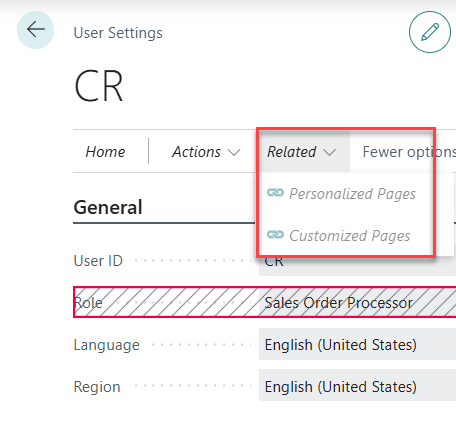
- User Settings (Admin Task): Opening the User Settings page (Use global search to find) shows a list of all users and their assigned Profiles. You can change a user’s Profile if needed, usually as an admin task when the user is first created.
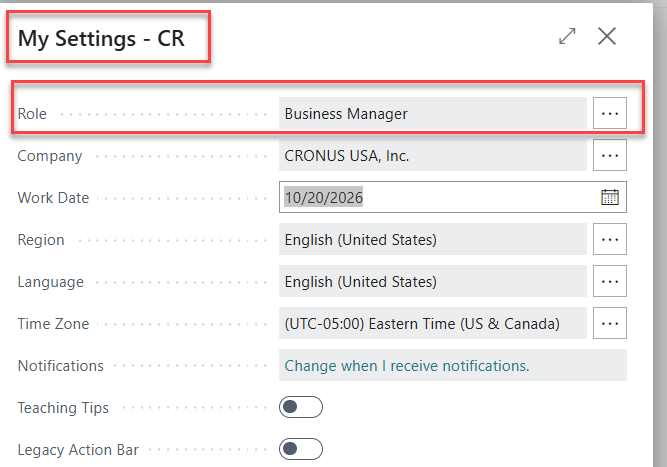
- User Settings (User Task): Users can change their own profile from the My Settings page.
Does Business Central Have Field Level Security?
Technically, there isn’t field level security in Microsoft Business Central, but with some creative setups, we can achieve it, though with some limitations. The steps below would need to be taken:
- Create a custom profile for users or groups that need Field Level Security and turn off personalization.
- Customize the Profile where you only show the fields the user needs access to.
- For fields that the user needs to see, but not be able to edit, you can lock editing through customizing the profile.
- D365 PROFILE MGT (Permission Set): Exclude this Permission Set as it allows users to change profile settings, including enabling personalization, which undermines the main goal.
- My Settings and User Settings: These areas need to be restricted to ensure the user doesn’t have the ability to change profiles. While customizing the profile, you’ll need to do the following:
- My Settings: Open the My Settings page and hide the Role field. (See picture above for reference).
- User Settings: Hide the Role field and the Personalized Pages, Customized Pages, and Clear Personalized Pages buttons in the ribbon. Clear Personalized Pages is located under the Actions tab.
- Another option is to limit user access to these pages with permissions, although it can be more complicated to set up.
- Edit In Excel: Marking fields as un editable in customization prevents users from modifying them in Business Central’s interface. However, users may still have the appropriate permissions to edit the field. Therefore, you need to disable the Edit in Excel feature to prevent them from publishing changes to those fields. You’ll need to ensure that you Exclude the Codeunit 1488 Edit in Excel Workbook in a permission set which will produce an error for the user.
- That’s it! Now onto the limitations 😞 that must be considered:
- Limitation 1: Users cannot change page layouts. (However, this could also be viewed positively, as consistent screens make training and getting help easier for teams.)
- Limitation 2: Pages and Reports can’t be bookmarked.
- Limitation 3: Edit in Excel functionality is taken away.
Thank you for reading, I hope you learned something new.
As always, stay SAASY my friend.
-Dino
 Business Central Made Easy
Leave a comment