In Microsoft Business Central, No. Series are used to assign a unique, sequential number to records and documents such as invoices, customers, vendors, and much more. They offer flexibility by allowing you to assign numbers automatically or manually based on the series.

No. Series Fields Overview
Note: All teal hyperlinks represent values from the related No. Series Lines, which can include multiple entries. These values are shown only for the active series, depending on the starting date and your current users’ work date.
- Code: You define the unique code for the series. And yes, you are manually assigning a code to something that’s meant to automatically assign codes for you. 😉
- Description: Do what you want…
- Starting Date: An optional field that shows when the current series begins.
- Starting No.: Earliest number in the current No. Series lines. At go-live of an implementation, you can either pick up where you left off in the previous ERP or start an entirely new numbering.
- Ending No.: Final ending number for the active series.
- Last Date & No. Used: These update automatically based on user activity.
- Warning No.: Indicates when to alert users that they are close to the Ending No. for the series. Adding this helps prevent future errors.
- Increment-by No.: An integer that defines how much to increase each new number, usually set to 1.
- Default Nos.: This feature automatically generates the next number for users, commonly used for Customers, Vendors, and documents like Sales Orders or Purchase Invoices.
- Manual Nos: Users can create their own numbers, such as Item records which typically don’t follow a set series.
- Date Order: When posting a transaction, the numbers are checked against the Last Date Used for the series and if the posting date is earlier, it will error.
- Allow Gaps in Nos: Specifies that a number assigned from the number series can be deleted. This is useful for records such as warehouse documents, customer cards, sales quotes, and more that, unlike financial transactions, can be deleted and cause gaps in the sequence.
- Implementation: This will auto update based on your selection in the Allow Gap in Nos field.
Note: Default and manual numbers can be used together. For example, in general journals, a default number can speed up data entry, but sometimes it’s better to override the default number for a clearer audit trail, especially in situations involving corrections.
No. Series Lines Fields Overview
To view the No. Series Lines list, click any teal hyperlink or the Lines button in the ribbon. All fields from the No. Series list are explained above, except the Open field, which stays checked until the last number is used. Example below of my companies Posted Sales Invoice series.

Where are No. Series added after creation?
After creating your No. Series for different Business Central areas, add them to the necessary setup pages. If you miss a setup, you will get an error later prompting you to fix it. Below is a list of some setup pages with examples, but it is not exhaustive.
- General Ledger Setup: Bank Account (Typically a manual series) and Bank Reconciliation Adjustments.
- Sales & Receivables Setup: Includes Customers, Sales Quotes, Invoices, Credit Memos, and more.
- Purchase & Payables Setup: Includes Vendors, Purchase Invoices, Orders, Credit Memos, and more.
- Inventory Setup: Adjustment Entries, Transfers, Physical Inventory, and many more.
- Fixed Asset Setup: Fixed Asset and Insurance No.s.
- Project Setup: Price Lists, Project No.s, WIP entries, and more.
- Assembly Setup: Blanket Assemblies, Posted Assemblies, Assembly Orders and Quotes.
- Manufacturing Setup: Planned Orders, Released Orders, Work Centers, Routing, and more.
- Resource Setup: Resource No.s and Timesheets.
- Warehouse Setup: Receipts, Shipments, Picks and Put-aways, and many more.
- Service Management Setup: Service Items, Orders, Quotes, Contracts, and more.
What are Relationships in No. Series?

Relationships allow you to create multiple series for the same type of record or document that can be chosen during creation. For example, I’ve made two series for customers: one for U.S. customers and another for international customers. I’ve set the default to U.S. customers, but I’ve also added an international option. I can switch to the international code when creating a customer card if applicable. Let’s take a look at this:
How to create time-based No. Series
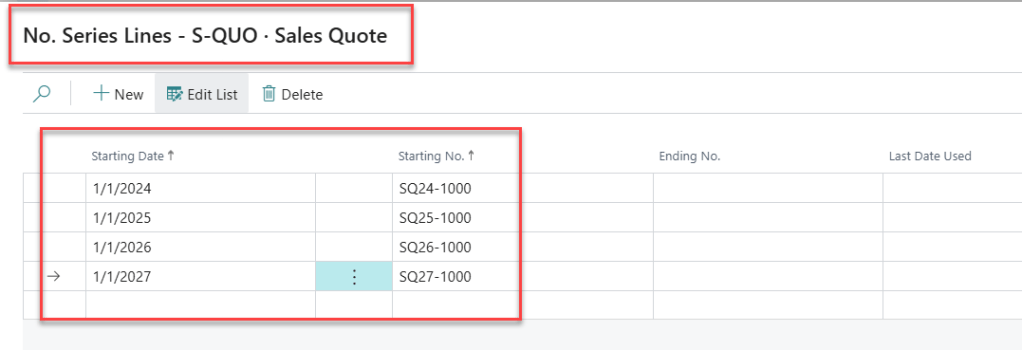
You can use the Starting Date field to add multiple No. Series Lines that start at different times. In my example below, I’ve set up our Sales Quotes to include the year they are created, but I could have done it by month, quarter, etc. This will check your users’ work date to find the current series.
Final Note: A common error related to No. Series is: “You have one or more documents that must be posted before you can post document no. XXXX based on your company’s No. Series Setup.” To learn why this occurs and how to resolve it, check out this post: Click Here
Thank you for reading, I hope you learned something new.
As always, stay SAASY my friend.
-Dino
 Business Central Made Easy
Leave a comment